




Add a Radio Stream to WordPress (Shoutcast/Icecast)
Learn how to add your internet radio stream to your website using WordPress, and display song title and artist from Icecast, Shoutcast, Media CP, Sonic Panel and more. Watch this 3-minutes video and quickly add the music to your radio website.
A radio website is not a normal website: you need a reliable player, continuous playback, and the ability to show song title, artist, and artwork whenever your streaming provider makes that data available.
Pro Radio was built for this. It supports Shoutcast, Icecast, and dozens of compatible providers and formats (30+ common server types), so you can connect practically any streaming platform and keep your website stack clean (one ecosystem, fewer conflicts, less maintenance).
What you need before you start
- Your Stream URL (MP3/AAC or provider endpoint)
- Your provider type: Shoutcast, Icecast, or a known platform (SonicPanel, MediaCP, Live365, etc.)
- If you want titles/artwork: your provider must expose metadata in a supported way (JSON/XML/ICY depending on provider)
Pro Radio streaming compatibility (most common providers)
Pro Radio is compatible with Shoutcast/Icecast and with many popular platforms, including:
- SonicPanel
- MediaCP (including Citrus3, Streamerr.co and similar)
- radio.co
- AzuraCast
- Citrus3
- Streamerr.co
- RadioKing
- laut.fm
- SecureNet Systems
- StreamGuys
- Live365
- RadioJar
- Radionomy (now typically handled via Shoutcast format)
For the full updated list and provider-specific instructions:
Continuous play (non-stop audio while browsing)

Pro Radio includes non-stop player capabilities, so audio can keep playing while visitors navigate the website, instead of stopping at every page load.
If you need a dedicated continuous-play setup (popup player / non-stop mode), use the player features described in the player documentation.
Fast setup (recommended for most users)
Radio Channels use a dedicated post type. If you installed a demo, the fastest setup is:
- Open the default Radio Channel imported with the demo
- Replace the demo stream URL with your real stream URL
- Set the correct Server Type
- Save and test on desktop + mobile
Choose the right Server Type (quick decision)
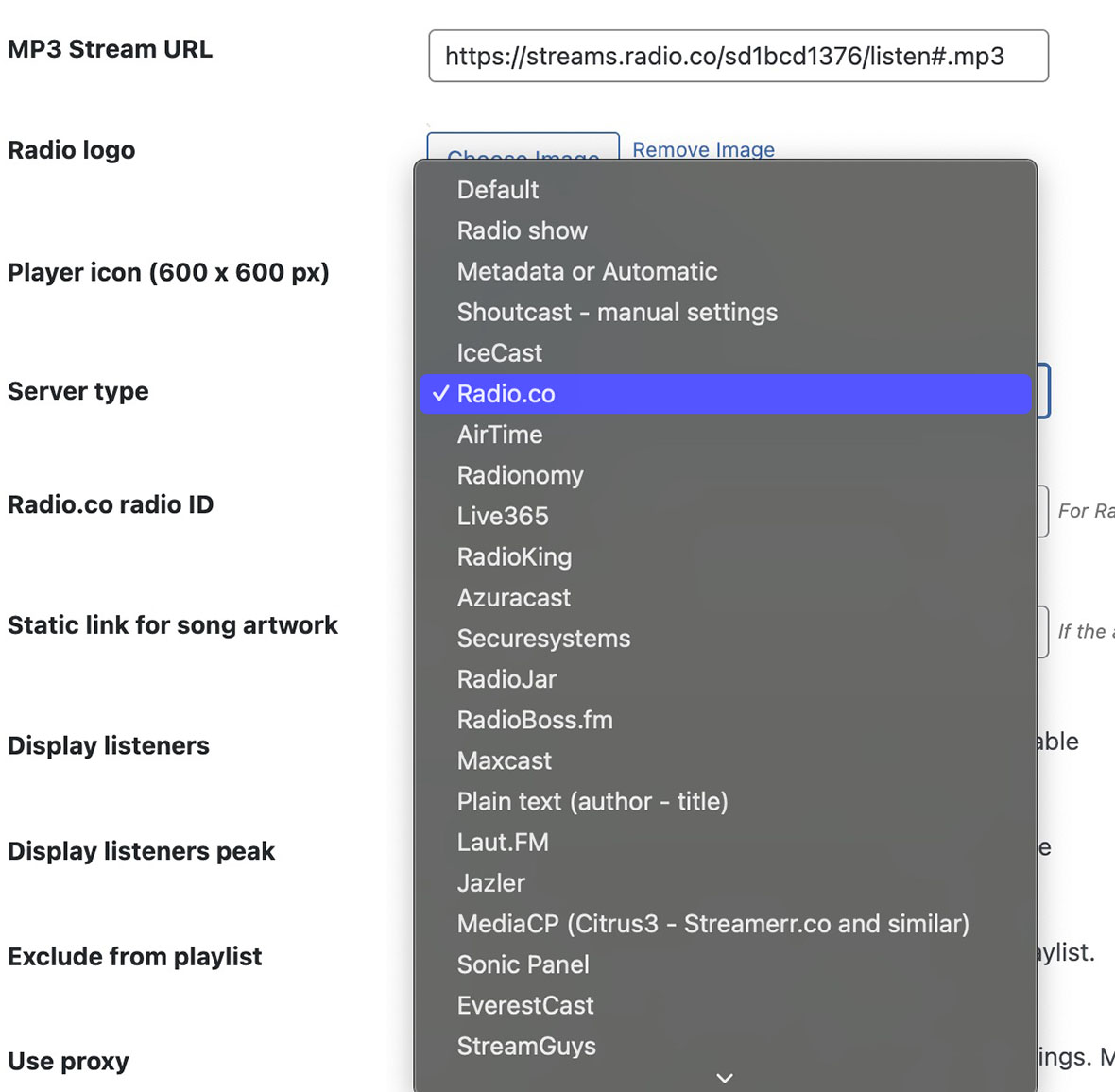
- If your provider is Shoutcast, use Shoutcast (or Metadata/Automatic for the proxy type).
- If your provider is Icecast, use Icecast and configure the STATS URL.
- If your stream exposes ICY metadata, use Automatic Metadata or ICY (fastest when available).
- If your provider is a platform like SonicPanel, MediaCP, Live365, RadioJar, laut.fm, use the dedicated server type.
Mini guide: Shoutcast setup (titles + artwork)
Official Shoutcast instructions
Shoutcast type A: HTTPS Shoutcast with proxy
If your streaming URL ends with ?mp=/stream, this is typically the proxy type.
- Set Server Type to Metadata or Automatic
- Save and test titles updating
Shoutcast type B: Regular Shoutcast (HTTP or HTTPS)
- In WordPress, go to Radio Channels and edit/create your channel
- Select Shoutcast as Server Type
- Fill the required fields (Host, Port, Protocol, Channel ID)
- Save and test
Important: Shoutcast V1 is not supported (obsolete and insecure). If you are stuck with V1, use the ICY Metadata approach as a fallback, but consider upgrading your streaming solution.
How to verify Shoutcast data (quick check)
If you need to validate your Shoutcast stats, Shoutcast 2+ typically provides JSON via a stats endpoint using sid (stream ID) and json=1.
If your JSON is broken/unreadable, ask your streaming provider to fix the stats output or use the Metadata fallback.
Mini guide: Icecast setup (titles + artwork)
- In WordPress, edit/create your Radio Channel
- Select Icecast as Server Type
- Create your STATS URL by appending the default endpoint /status-json.xsl to your Icecast base URL
- Open the stats URL in a browser to confirm it outputs JSON data
- Save and test title/artist updates
If the default endpoint doesn’t work, your provider may use a different stats endpoint. Use the Icecast documentation page above to see common alternatives, or ask your provider.
Provider quick setups (most requested)
SonicPanel
Official SonicPanel instructions
- Copy your MP3 stream URL from SonicPanel and paste it into the Radio Channel MP3 field
- Use the SonicPanel JSON output for titles/artwork when available
- Select the dedicated SonicPanel server type
MediaCP (Citrus3, Streamerr.co and similar)
- Set your MP3 stream URL as usual
- Select server type MediaCP (Citrus3 – Streamerr.co and similar)
- Copy the JSON link from your MediaCP panel (Widget/Links area) and paste it in the channel where required
Laut.fm
- MP3 stream URL typically looks like https://stream.laut.fm/YOURSTATION
- Select server type Laut.FM
RadioJar
Official RadioJar instructions
- Select server type RadioJar
- Use your RadioJar station ID / API details as described in the documentation
- Proxy is usually not required with RadioJar
Live365
- Set the MP3 stream URL in the format used by Live365
- Select server type Live365 and insert your Live365 ID in the dedicated field
- Live365 uses restrictive cross-origin policies, so Pro Radio may use a built-in proxy to read titles
- If titles don’t work, your hosting provider may be blocking server-side calls to Live365 endpoints
- Live365 has licensing/geolocation limitations that can affect connectivity depending on your plan
Radionomy
Official Radionomy instructions
Radionomy moved to a standard Shoutcast-style format for many setups. If your Radionomy stream behaves like Shoutcast, configure it using the Shoutcast server type.
If titles don’t update or get stuck
Sometimes caching can cause titles to look “frozen”. If your setup is correct but titles do not refresh, check the Automatic Metadata troubleshooting:
Related guides
- How to Start a Radio Station (Online + FM) Step-by-Step
- Radio Station Website on WordPress (Step-by-Step)
- How to Start an Online Radio Station (Fast Setup)
- Import Podcast RSS Into WordPress (Clean Import)
- WordPress Radio Player (What to Look For)
- Add a Radio Schedule to Your Website (Best Practice)
FAQ
Can Pro Radio work with my streaming provider?
In most cases, yes. If your provider exposes a standard audio stream URL and any compatible metadata endpoint, Pro Radio can play the stream and display titles/artist/artwork when supported by that provider.
Do I need Shoutcast or Icecast specifically?
No. Shoutcast and Icecast are common, but Pro Radio also supports many panels and platforms directly (SonicPanel, MediaCP, laut.fm, Live365, RadioJar and more).
Why does the stream play but titles/artwork don’t show?
Playback is one thing, metadata is another. Your provider must expose title/artist/artwork via a supported method (JSON/XML/ICY), and some providers restrict metadata access unless proxy is used or your hosting allows server-side calls.
Copyright 2019-2026 ProRadio® Qantum Themes SL® ESB02979078 All Rights Reserved